Welcome to EMhub-Tomo!
EMhub-Tomo is a platform for CryoET data processing that facilitates the execution of heterogenous pipelines in a flexible and structured way. It is based on the emwrap library, which provides Python wrappers for executing external programs in a consistent way. Proccessing jobs and projects are compatible with the Relion data model, but extended with a form definition for the job parameters and GUI layout. EMhub-Tomo provides a web interface based on emhub and ScipionWeb components for displaying the processing pipeline and visualizing the results. Defined jobs can also be executed from Relion’s GUI (work in progress).
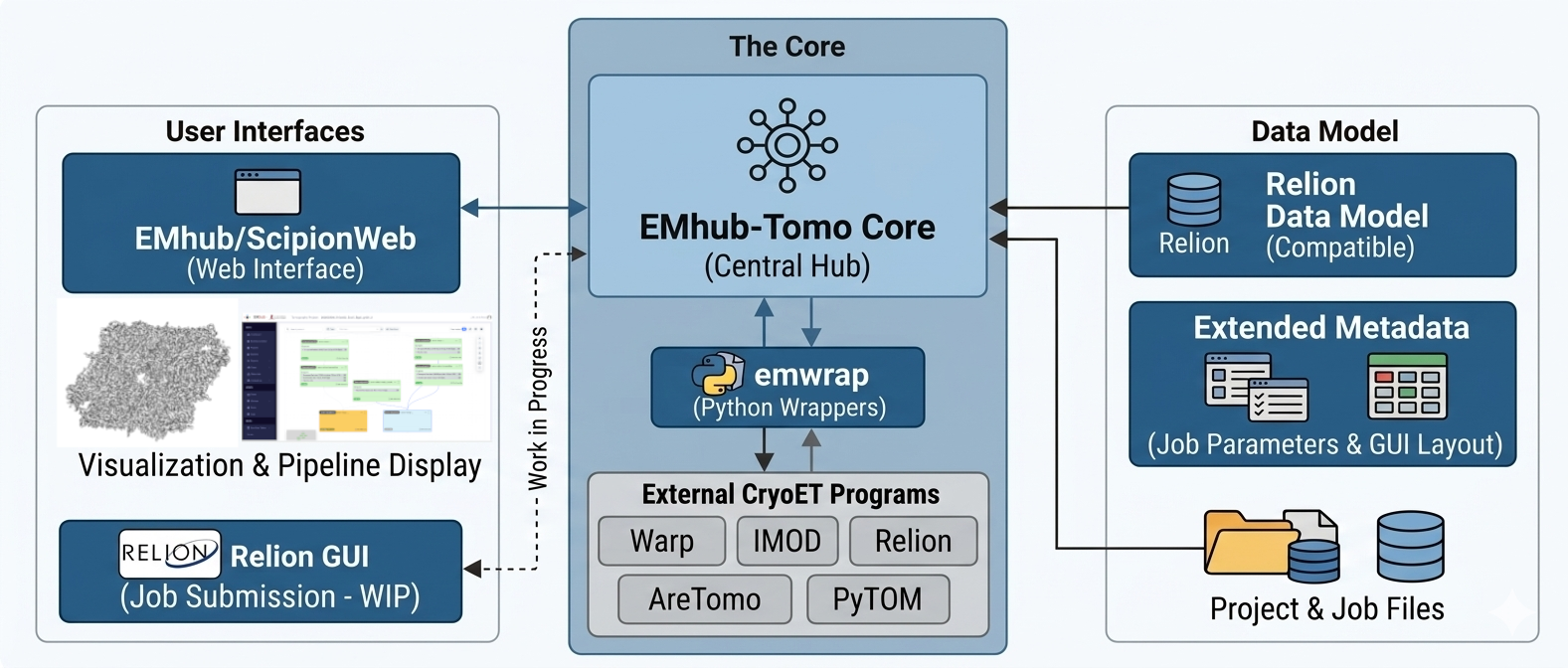
Installation in 3 easy steps
Create the Python environment and install the sources.
Configure program launchers and cluster queues for your site.
Run automated tests to ensure the installation is working correctly.
1. Python environment
EMhub-Tomo needs Python 3.10 or newer (3.14 recommended), available through either an active conda environment or a plain Python venv – the install script auto-detects whichever one is active. See Python Environment for how to install conda, or use a venv instead.
# Create a folder for the installation
mkdir emhub && cd emhub

# Create a conda environment and activate it
conda create -y --name=emhub python=3.14 && conda activate emhub

# Download and run the install script
wget -qO- https://3dem.github.io/emhub-tomo/install.sh | bash
The install script clones the emtools, emhub, and emwrap repositories into a source folder, generates a bashrc file to (re)activate the detected conda/venv environment, and generates an executable emh-tomo script in the installation folder. As its last step, the installer also runs ./emh-tomo –update to set up the configuration files – see 2. Configuration below to adapt the program launchers and cluster queues to your site.
Once configured, run the server with:
./emh-tomo --run
./emh-tomo –run starts the emhub instance stored at ~/.emhub/instances/tomo (creating it the first time from a minimal instance, together with the processing “extra” files shipped with emhub). The server is started on a free port chosen automatically and printed in green, together with a ready-to-use ssh -L tunnel command for connecting from a client machine when EMhub-Tomo runs on a remote or HPC host. The admin user is logged in automatically, so no login step is required for this use case.
2. Configuration
./emh-tomo –update creates a emwrap.bashrc file in the installation folder if it does not exist yet (this happens automatically once at the end of the installation). This is the main configuration file that has references to other files and settings. From there, the bashrc file is sourced to load the required Python/Conda environment. The environment variable EMWRAP_CONFIG is defined in the emwrap.bashrc file, as a JSON literal. You should modify its content to adapt to your computing needs regarding programs, queues, and other settings.
# Update the configuration files and pull the latest changes for the
# emtools/emhub/emwrap source checkouts
./emh-tomo --update

# Inspect or validate the current configuration
./emh-tomo --config list
./emh-tomo --config check
See Supported Programs and Cluster Queues for how to configure program launchers and cluster queues in detail.
2.1 Program Launchers
In emwrap, external programs can be defined by specifying “program launchers”: bash scripts that wrap a program call and set up whatever environment it needs (loading cluster modules, sourcing other bash files, setting environment variables, etc.), so that emwrap itself does not need to know about local installation details.
Launchers are configured in the programs section of the EMWRAP_CONFIG variable, and after installation a scripts folder is created with example launcher scripts that you will likely need to adapt to your environment. Jobs implemented in emwrap use $ROOT/emh-tomo --launch as the EMWRAP launcher (no separate shell script).
See Supported Programs for the programs configuration example and detailed launcher examples (Warp, Relion, and others). The list of supported programs, the versions tested with EMhub-Tomo, and links to their installation instructions are in the Supported Programs table.
2.2 Cluster Queues
After the program launchers, the next section of EMWRAP_CONFIG is the definition of cluster queues. You can define as many queues as you need, and each queue can have a different job script template, submit command, and parameters (for example, letting the user pick a GPU type).
See Cluster Queues for the queues configuration example and details on writing job script templates (including SLURM and LSF examples).
3. Running Tests
Running automated tests is a good way to ensure that the installation is working correctly.
You can use the same ./emh-tomo entry point to discover and launch some tests.
# List the available tests
./emh-tomo --test list

# Create a project to run the tests
mkdir TestProject && cd TestProject
emw -c .

# Run the Warp test with 2 GPUs
./emh-tomo --test apof_warp -p . -g 2 -w medium

# Or run AreTomo3 test with 1 GPU
./emh-tomo --test apof_aretomo3 -p . -g 1
These test require to have a test data set available. See more information about how to run tests here: Running Tests.
Other Features
Processing Jobs
Processing jobs in EMhub-Tomo follow the same convention as Relion’s External job type: each job runs in its own job folder with an input arguments file and writes to an output folder, reporting success or failure the same way a native Relion job would – so pipelines built from EMhub-Tomo jobs stay visible and reusable from within Relion itself.
On top of that convention, each job type ships its own form.json file (see emwrap/config/forms) describing the
parameters shown to the user and how they are organized in the Form UI. See Job Forms for the full reference.
See Supported Jobs for the job types currently implemented for CryoET processing, grouped software package (Warp, Relion, PyTOM, AreTomo, and emwrap’s own jobs).
Workflows
Workflows are defined in the workflows folder. Each workflow is a JSON file that defines the jobs to be executed in sequence, together with the parameters passed to each. The idea is that processing pipelines built in EMhub-Tomo can be exported as workflows and reused in other projects.
Tutorials
Warp ApoF Tutorial
The Warp ApoF Tutorial walks through a complete subtomogram averaging pipeline on the WarpApofTutorial
test dataset (5 apoferritin tilt series from EMPIAR-10491), mixing Warp, PyTOM, and Relion. It covers
creating and opening a project, loading the two predefined workflows (apof-warp-tutorial-part1 for preprocessing,
particle picking and the first Relion refinement, and apof-warp-tutorial-part2 for the M refinements), working
with the job forms, and inspecting the results: tomograms with the picked coordinates, the initial model, and the
final map with its FSC curves after the M refinements.